Module 1
Website Creator for Existing Client-Accounts
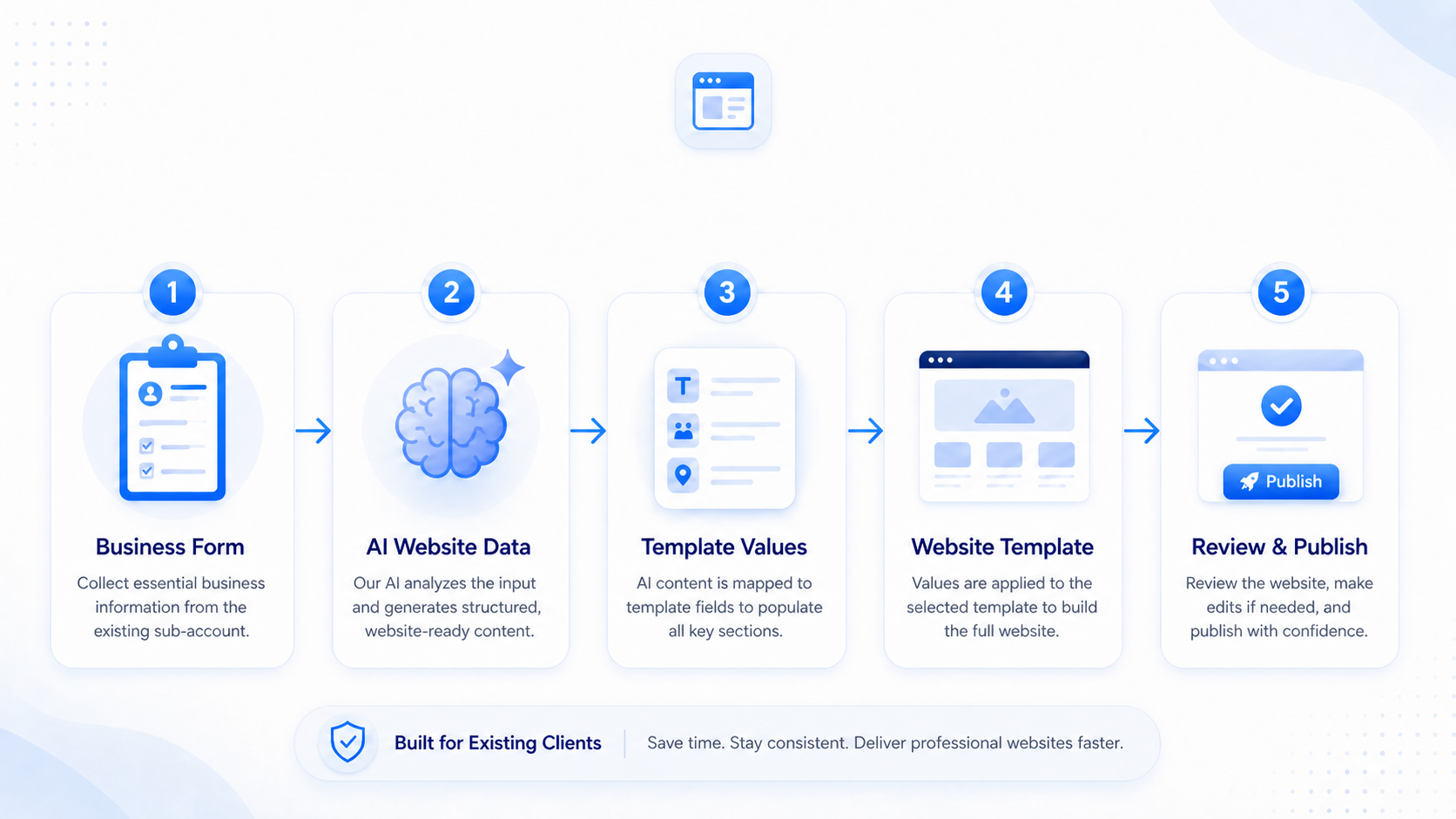
This module is designed for cases where you or the clientaccount owner need a fast startingpoint for a clientaccount website. The goal is to generate the content and design data needed to fill a compatible website template automatically.
Custom Values
How the form connects to the website
Templateflow stores generated website data in Custom Values. Website templates display this data through placeholders.
Text examples
{{ custom_values.tf_hero_title }}
{{ custom_values.tf_hero_subtitle }}
{{ custom_values.tf_service_1_title }}
{{ custom_values.tf_contact_address_text }}
{{ custom_values.tf_footer_copyright_text }}
Media & color examples
{{ custom_values.tf_header_logo }}
{{ custom_values.tf_hero_image }}
{{ custom_values.tf_google_map_iframe_code }}
{{ custom_values.tf_header_background_color }}
{{ custom_values.tf_services_card_background_color }}
Layout map
Where to use the main Templateflow variables
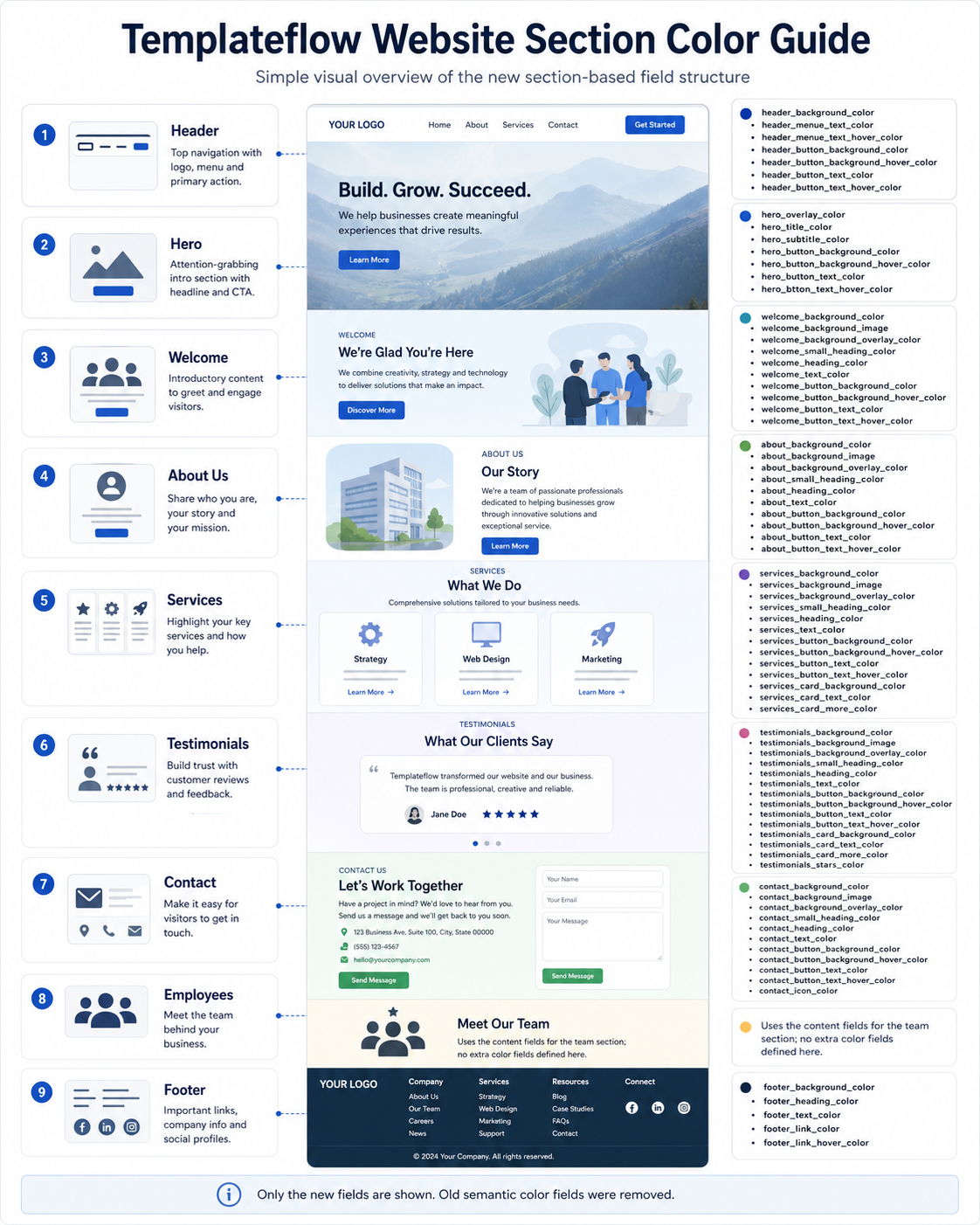
This schematic layout shows the most important placeholders per website section. Use it as a quick guide when building or checking templates.
Header
Logo, menu, CTA
Hero
First impression
Welcome
Introduction
Services
3 service cards
About / Team
Trust section
Testimonials
Social proof
Contact
Conversion
Footer
Final details
Custom templates
Creating your own website template
Customers are not limited to Templateflow templates. Advanced users can create their own website template and connect it to the same variables.
Template preparation checklist
- Create or open a website/funnel page.
- Design Header, Hero, Welcome, Services, About, Testimonials, Contact and Footer.
- Insert Templateflow Custom Value placeholders into text, image and style settings.
- Use section-based color values for backgrounds, text, buttons, cards and overlays.
- Run the Website Creator form and test the template with multiple industries.
Practical examples
Hero headline:
{{ custom_values.tf_hero_title }}

Service card 1:
{{ custom_values.tf_service_1_title }}
{{ custom_values.tf_service_1_short_text }}

Section background:
{{ custom_values.tf_services_background_color }}

Button color:
{{ custom_values.tf_hero_button_background_color }}
Important:
A reusable template should not contain fixed client-specific text. Use Templateflow variables wherever dynamic business content should appear.